
CHUEM Desktop
Turn on
CHUEM Desktop.
Power on the system and complete the automatic positioning sequence before beginning a rehabilitation session.
Guide
Startup
Previous
Setup
Before powering on
Make sure both the control unit and display are connected to power before continuing.
Control unit
Confirm that the main power cable is connected.
Display
Confirm that the display is connected to its power source.
Release the
Emergency Stop.
Rotate the Emergency Stop clockwise until the button rises into the released position.
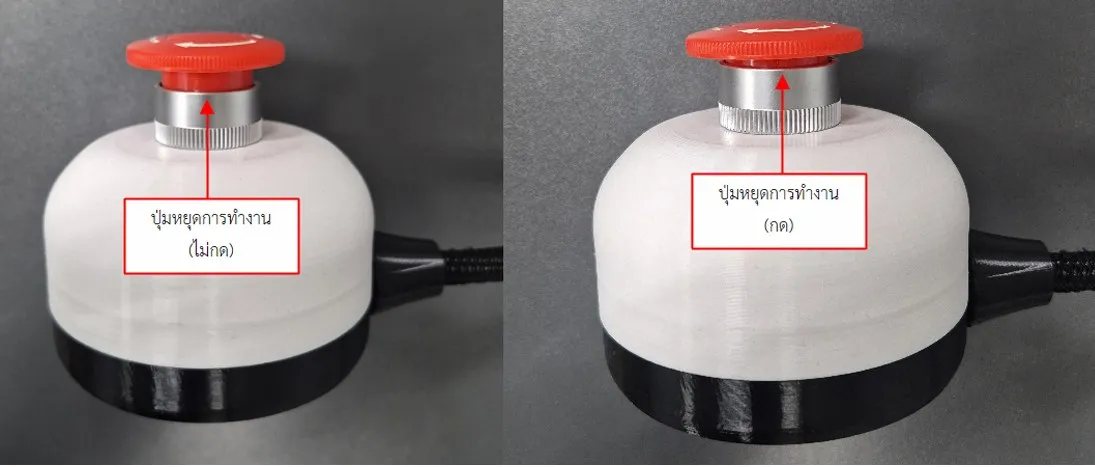
The system should not be started while the Emergency Stop remains pressed.
Turn on the
main switch.
Switch on the control unit from the rear. The power indicator should illuminate and the cooling fan should begin operating.
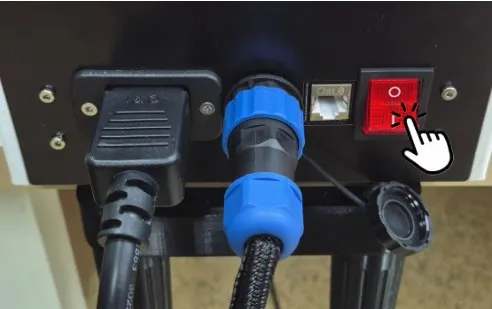 Off
Off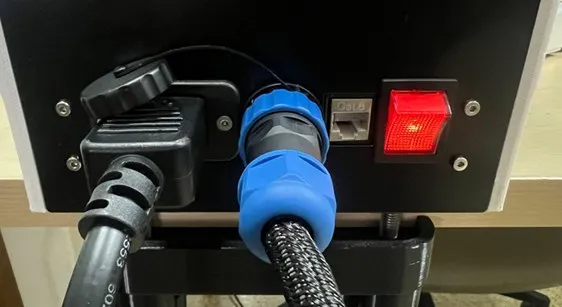 On
OnClear the workspace before calibration.
After startup, the system will request permission to perform its positioning sequence.
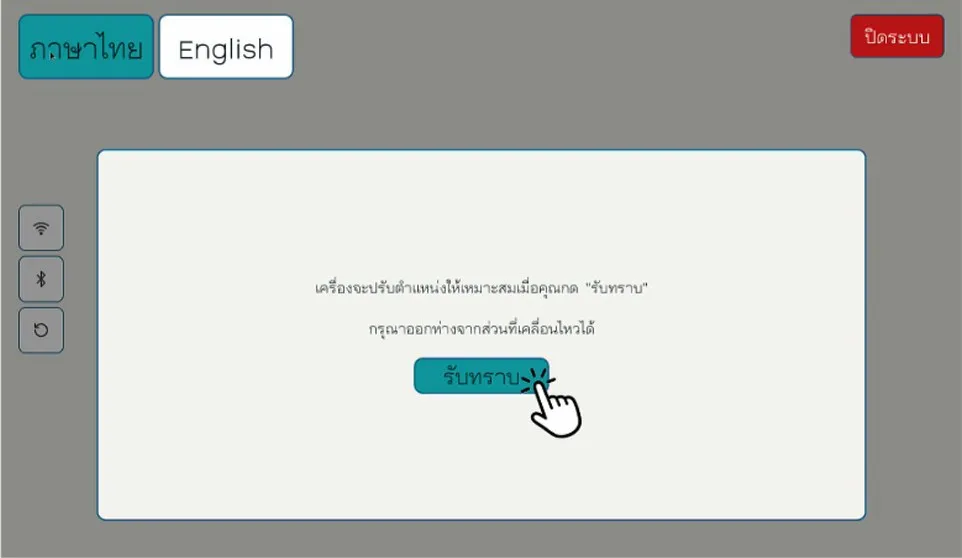
Make sure there are no objects within the robot's movement area before selecting “Acknowledge”.
Do not touch the robot while automatic positioning is in progress.
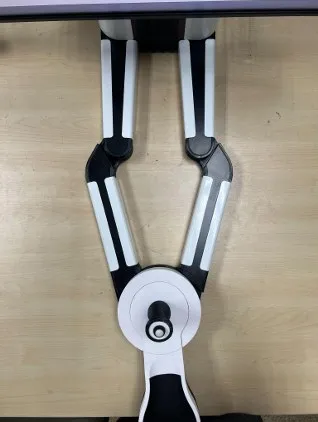
Automatic movement
The handle moves toward its extended position.
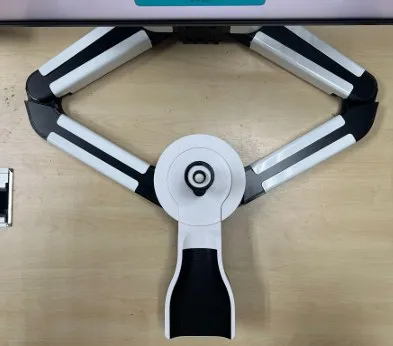
Home position
Wait until all movement has stopped before continuing.
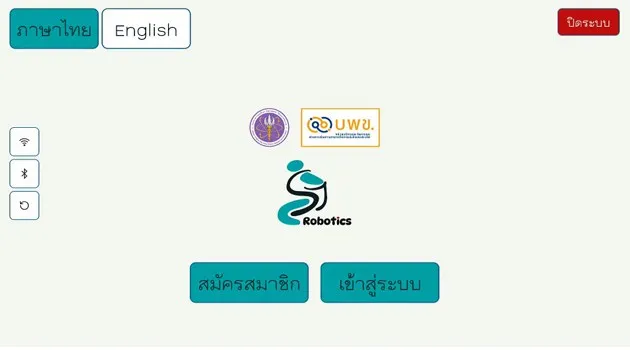
Startup complete
Ready when the login screen appears.
Once the robot has stopped moving and the login screen is displayed, CHUEM Desktop is ready for use.
Do not use the system
If the robot does not stop at the expected position, shut the system down and restart it before attempting to use it.