
CHUEM Desktop
Start a
rehabilitation game.
Choose an activity, prepare the session, adjust the challenge, and begin rehabilitation with CHUEM Desktop.
Guide
Games
Previous
Offline Mode
Ready?
Let's play.
From the main menu, select “Play” to open the rehabilitation game library.
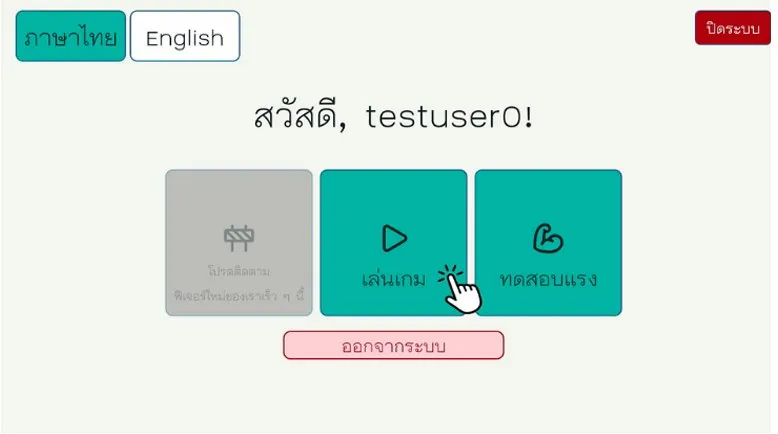
Main menu
Select Play to begin.
Choose your activity.
Browse the available rehabilitation games and select the activity you want to play.
Select a game to continue

Click the game you want to use to open its session settings.
Set the session
before you begin.
Choose the difficulty and session duration before starting the game.
Difficulty
Adjust the rehabilitation challenge
Duration
Set the playing time in minutes
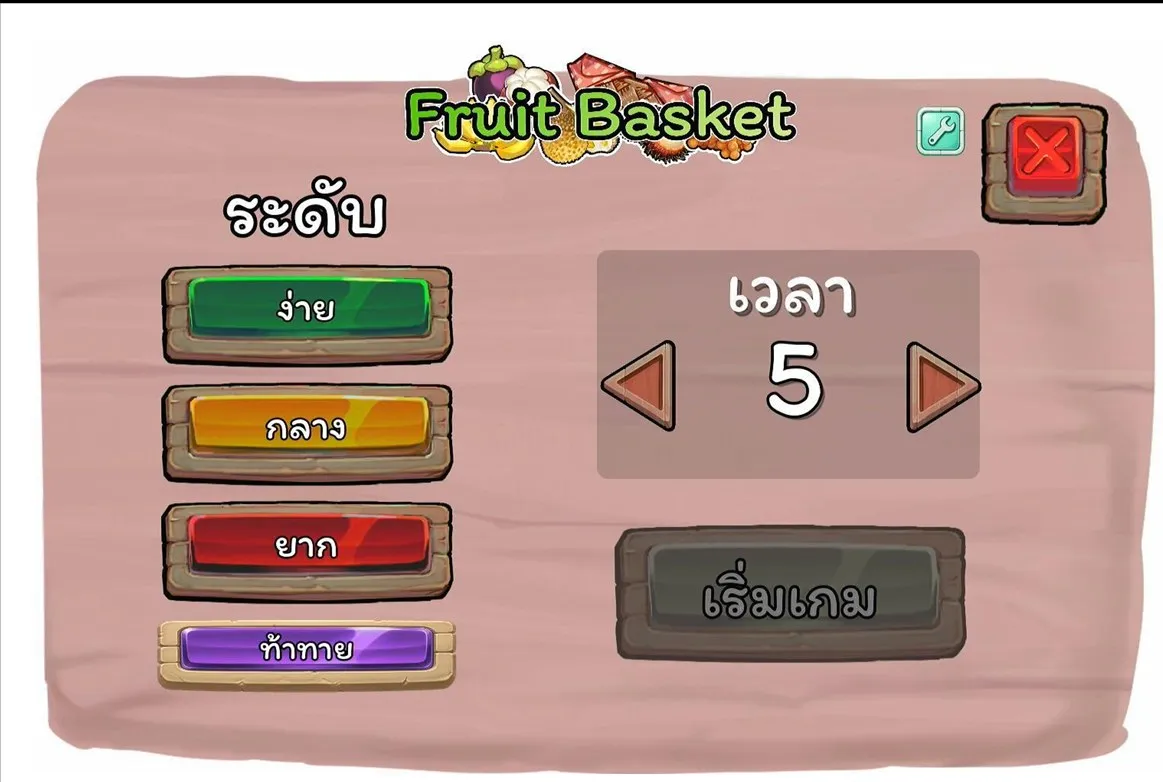
When ready
Select Start Game
Choose how much
challenge you need.
Difficulty can be selected from simplified presets or adjusted manually using custom settings.
Easy mode · Custom mode
Easy mode
Select a preset difficulty.
Each preset adjusts the amount of robotic assistance and the behavior of objects inside the game.
Easy
High
Slow / fewer
Medium
Low
Slow / fewer
Hard
Low
Medium
Challenge
None
Medium
Custom mode
Fine-tune the session.

Open custom settings using the wrench icon to adjust robotic assistance and game-object behavior separately.
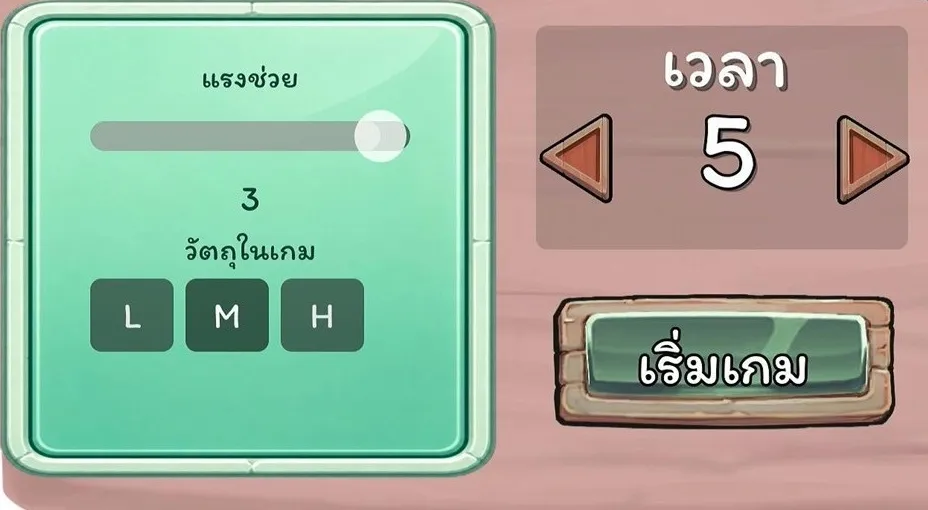
Assist level
Game objects
While you're playing
A few controls remain available during the rehabilitation activity.
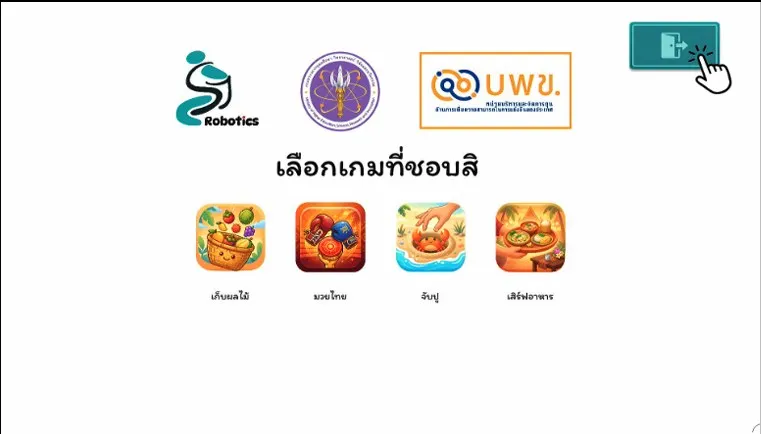
Finish early
Select the exit button at the top of the screen to leave a game.
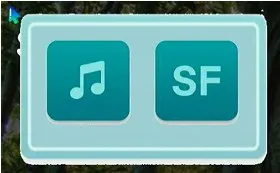
Control game audio
Move the pointer to the upper-left corner to reveal the music and sound-effect controls.
Session complete
Finished playing?
Leave the game menu when the rehabilitation activity is complete.
Exit the game menu
Select the exit control at the upper-right of the game menu.
End the user session
Select Logout or End to return to the login screen when the user has finished.