
CHUEM Desktop
Measure with
Strength Assessment
Prepare the robot, perform the Strength Assessment, and view the user's maximum measured force.
Guide
Strength Assessment
Previous
Games
Open
Strength Assessment
From the main menu, select “Strength Assessment” to enter the force measurement mode.
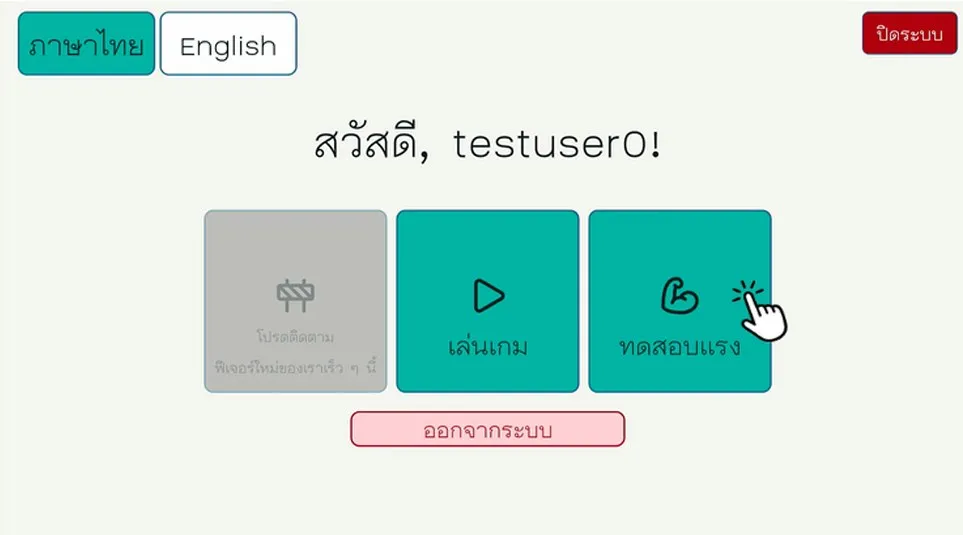
Main menu
Select Strength Assessment to begin.
Clear the
workspace.
Before the robot moves into the Strength Assessment position, make sure the tabletop and movement area are free of obstacles.
Continue only when the robot has enough clear space to reposition safely.
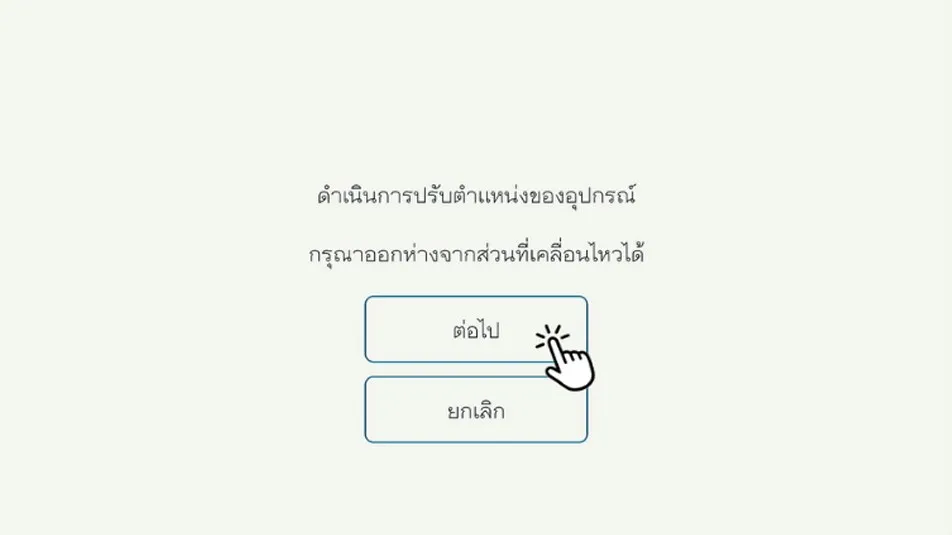
Let the robot position itself.
After acknowledging the positioning prompt, CHUEM Desktop will move the handle to the Strength Assessment starting position.
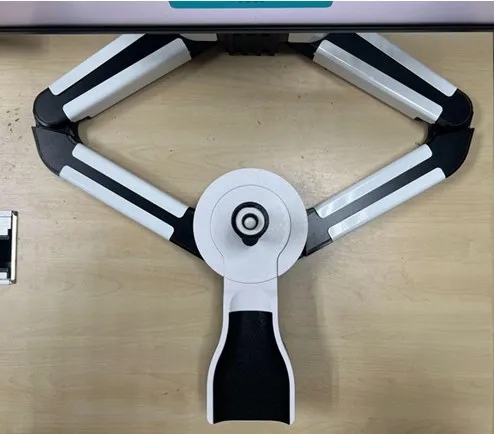
Automatic positioning
Wait until all movement has stopped.
Do not touch the robot while automatic positioning is in progress.
Force measurement
Apply force
when ready.
The system automatically detects when the user begins applying force and starts the measurement timer.
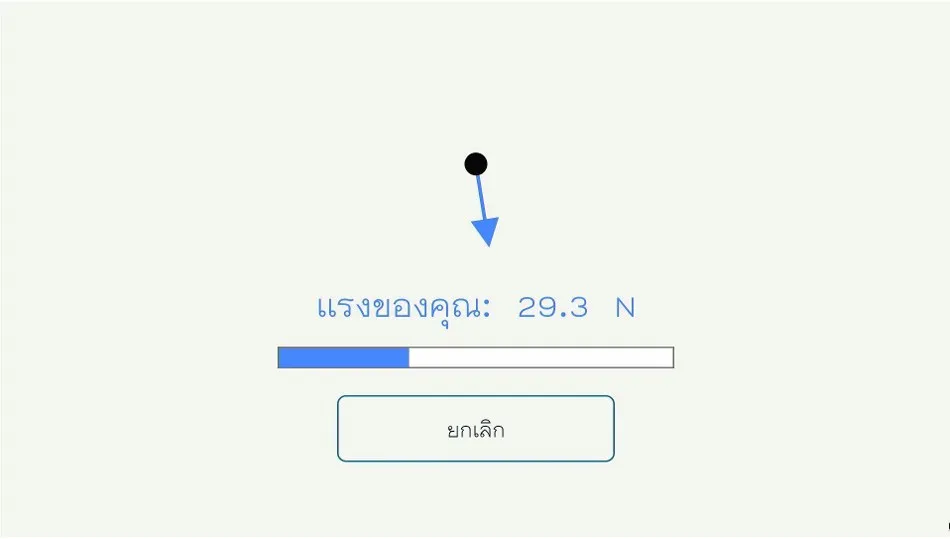
Follow the timer shown on the interface. Stop applying force when the measurement time is complete.
Measurement complete
View the
maximum force.
When the test is complete, the system displays the user's maximum measured force.
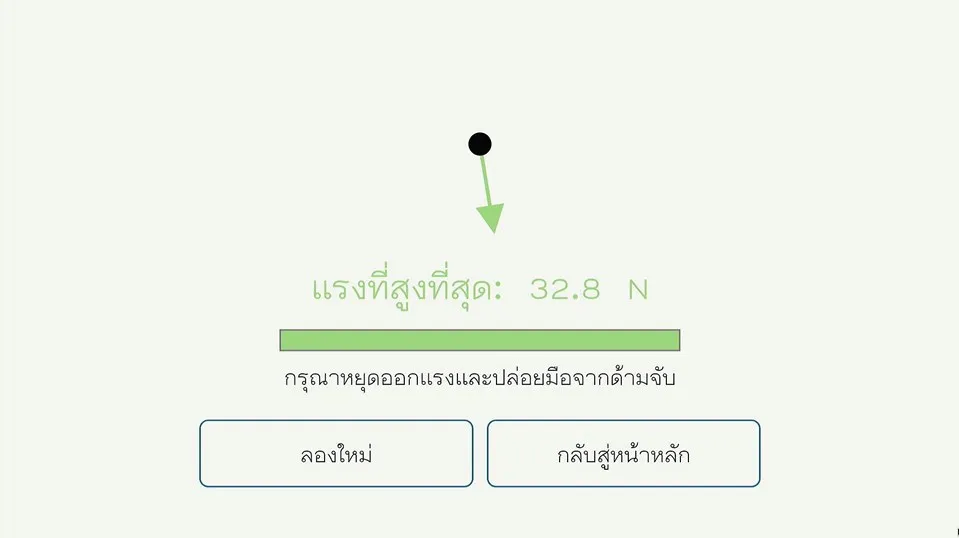
Try again
Repeat the Strength Assessment for another measurement.
Return to Main Menu
Leave Strength Assessment and return to the main menu.