
CHUEM Desktop
Emergency
Stop.
What to do after the Emergency Stop is pressed and how to return CHUEM Desktop to operation safely.
Guide
Emergency Stop
Previous
Shutdown
Emergency Stop active
The robot
stops operating.
When the Emergency Stop is pressed, CHUEM Desktop displays the Emergency Stop state on screen.
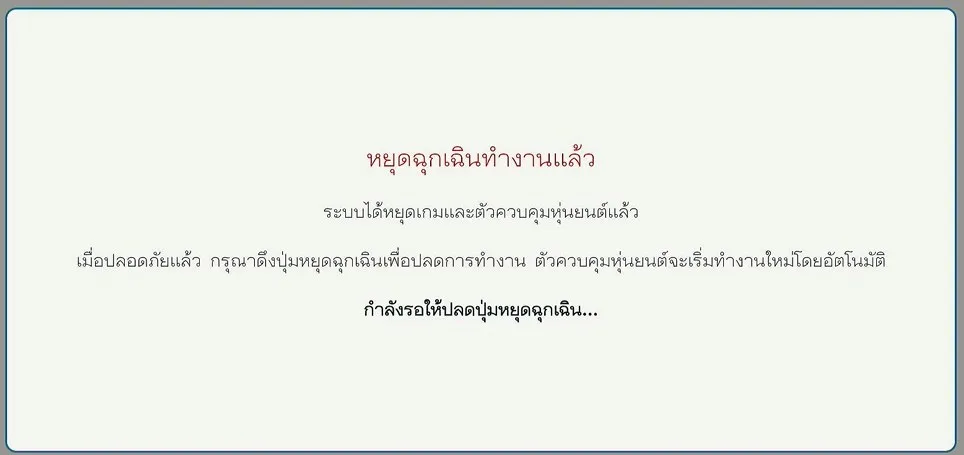
Do not immediately release the Emergency Stop. Check the robot, user, and surrounding area first.
Check before
you continue.
Confirm that the robot and surrounding environment are safe before releasing the Emergency Stop.
User
Confirm that the user is safe before restarting movement.
Robot
Check the system before allowing automatic movement again.
Workspace
Remove anything that could obstruct the robot's movement area.
Release the
Emergency Stop.
Once the situation is safe, rotate the Emergency Stop clockwise until the button rises into the released position.
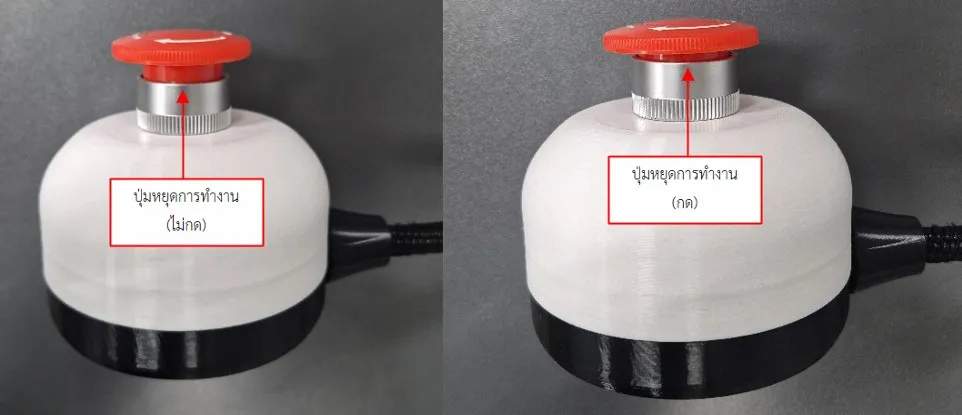
Rotate clockwise
Release the button only after confirming it is safe.
Prepare for
repositioning.
After the Emergency Stop is released, the system will request permission to reposition the robot.
Clear the tabletop first.
Confirm there are no obstacles in the movement area before selecting “Acknowledge”.
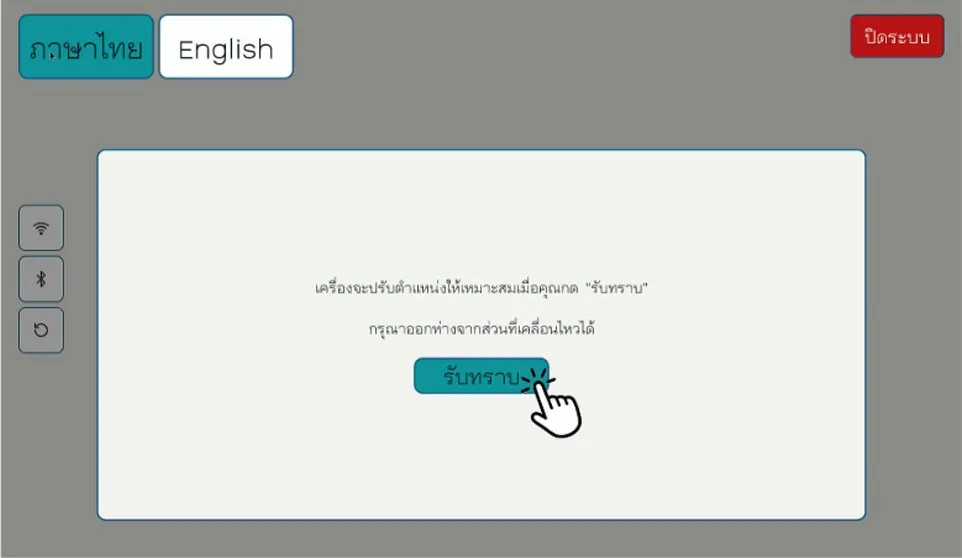
Do not touch the robot while it is returning to its starting position.
Recovery complete
Resume only after movement has stopped.
Wait for the robot to finish returning to its starting position before continuing operation.